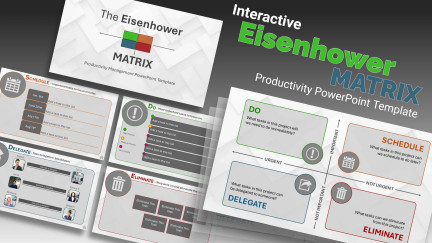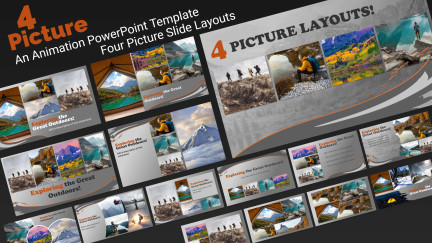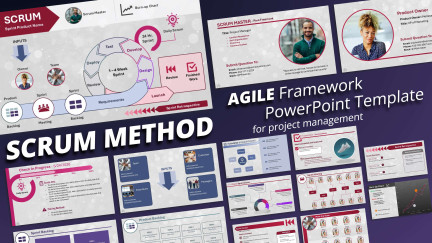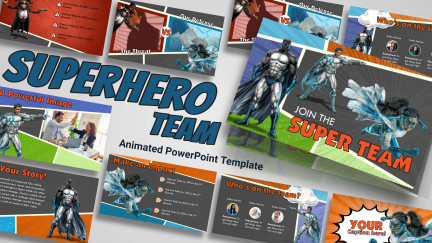

We recently had a question from one of our members about changing the way our PowerPoint templates formatted the text in placeholders. It seems that our subscriber was finding herself constantly tweaking the layout of each slide to fit the exact format that she needed.
I thought I’d post a video tutorial about how you can easily modify the Master Slide to a custom format to exactly fit your needs.
This video will show you how to modify the Slide Master in a PowerPoint Template to control the text on every new slide you add. In this way you can make the change one time and have it apply to every slide in your presentation.
I’ve written more about using the slide master in our PowerPoint templates here:
I was recently asked the questions about how to remove elements from one of our animated PowerPoint templates. Specifically, our subscriber wanted to remove the globe and keep the rest of the animation from this template. But she also wanted to keep the globe animation in other slides.
This is a great question, and it gives me an opportunity to better explain how the slide master works.
This tutorial applies to PowerPoint 2010, 2008(mac) and 2007.
The Slide Master Explained
The heart of a PowerPoint template is the Slide Master. To view the slide master – choose View>Slide Master.
Slide Master View in PowerPoint
It controls all the default layouts and various pre-designed slides that are included in our templates. Each Slide Master can have any number of layout pages beneath it. Think of the Slide Master as the template for the template. You can have multiple Slide Masters, and each Master can have multiple layouts attached to it. It’s powerful but a bit confusing at first.
Take a look at this screen-shot, the slide at the top is the Master, everything beneath and indented is a layout attached to the Master.
The Slide Master and the attached Layouts
Adding and Subtracting Items from the Slide Master
An element or image placed on the Slide Master is copied to any layout page attached to the Master. (There is a way to hide Slide Master graphics on the attached layouts. This is explained at the end.) So in our example, if you remove the globe from the Slide Master, the top slide in the illustration above, it is also removed from all the layout pages of the template.
That’s great if you don’t want the globe to appear anywhere in the template, but the original problem was we wanted the globe animation to appear only on select slides, not get rid of it completely.
There are a couple of things you could do at this point.
1. Cut the animation from the Slide Master and then Paste it into the individual layouts where you want it to appear.
Any element you place on a layout slide, will only appear in your presentation when you choose that layout. This is a fine, but if you start adding elements to the layouts, it can quickly get confusing where the final resting place for that element is. Is that picture on a actual slide, on a layout, or is it on the Slide Master?
2. Duplicate the Slide Master
This is my favorite option. Because you can have multiple Slide Masters in your template, you can duplicate the Slide Master.
Choose ‘Duplicate Slide Master’ from the menu after you right click top of the Slide Master. Now with this new Slide Master, in our example, you can have a complete set of new layouts without the globe animation, and a complete set with the animation.
A second Slide Master is created with the globe animation removed.
Now after exiting the Slide Master view, you have a completely new set of layouts available to you in the normal PowerPoint view.
Your new Slide Master layouts now appear when you select Layouts
Hiding Graphics Used on the Slide Master
You may notice that by deleting the globe from the slide master that the globe still exists on the Title Slide Layout. This is because the Title Slide Layout has its own graphical elements and all the elements from the Slide Master are hidden.
The Title Slide Layout is hiding the graphics from the Slide Master.
If you right click on the layout you wish to edit, you can choose ‘Hide Background Graphics”. This effectively removes all the graphical elements from the Slide Master. In this example a different version of the globe animation has been added directly to the Title Page Layout so the template has another look.
Hide Background Graphics to remove Slide Master graphics from layout pages.
One note of warning, if you hide the background graphics you will need to copy and paste any images or videos you wish to continue to use directly into the layout you are modifying.
In Closing
It can be confusing, but once you have worked with the Slide Master and it’s layouts it gets pretty easy. Just remember when editing our templates, first start editing on the Slide Master. If you cannot remove or change what you want there, then move on to looking at the attached Layout slides. If your still have questions, feel free to contact our customer support.
We are often asked how easy it is to change our PowerPoint templates. Everything in our templates can be moved, sized, copied or deleted from the template. I thought I would show some of the things you can do with our templates. In order to make these changes you will need to be slightly familiar with the Slide Master and how it works to control the layout and the design of a PowerPoint template.
You can access the Slide Master by clicking on the view tab on the PowerPoint Ribbon.
Slide Master View in PowerPoint
Under the Slide Master you will find all the elements we have used to create the overall design of the template. If you are editing an animated template, you will find the video files here that we use. Also each swoosh, swoop, design box or divider we use in the template is located here as well.
Note: one exception is the 3D clip art we use is placed directly on the individual slides and is not part of the Slide Master.
There are typically several elements layered on top of each other, so you’ll want to have the selection pane open as well.
Opening the Selection Pane In PowerPoint 2010
Under the home tab in the ribbon, choose Select > Selection Pane. The selection pane gives a list of all the elements that are on the slide and in what order they are stacked on top of each other. Tip: This is a great way to get to an element that might be hidden beneath a text box or other element.
Selection Pane in PowerPoint 2010
For this tutorial I’m using the Global Energy template by PresenterMedia artist Josh Doohen.
We recently had a question about how to remove the animation from one of our animated PowerPoint templates. We utilize the themes feature of PowerPoint 2007 and 2010. In most of our animated templates for PowerPoint we have included two complete themes. The first theme is the animated theme, but there is also a complete set of layouts (a theme) which has all the animations removed and replaced with static imagery.
So how do you change between one and the other you ask? It’s really easy. Simply right click on top of the slide you wish to change the layout on and choose “Layout” from the menu that appears.
Here is a screen-shot of what you should see:
Choosing a Layout theme in PowerPoint 2007 and 2010
Most of our animated PowerPoint templates come with up to 19 pre-designed slide layouts. Then each of those layouts has an animated and a static versions.
All of these layouts can be edited to your needs in the Slide Master view. Find the slide master under the View tab.
I’ve found that its best to save your animated slides for special occasions where you need to call attention or you want to add a wow effect. For most of your slides it is best to stick with a static page. With PresenterMedia templates its easy to switch between a static and animated slide with a simple click of the mouse.
While we try to offer you a wide range of pre-designed layouts in our templates, sometimes you need something just a little bit different. Not to worry, our templates come with many easy to manipulate customizable elements to change the whole look of you presentation.
When we are building our PPT templates, we try to leave as many of the design elements intact so they may be further customized. For example we will use PNG images with transparent backgrounds and then layer them in PowerPoint. You can then take those design elements and make more modifications to them. Using PowerPoint’s built in tools, you can change the color, add effects, move, resize, copy and paste to another page, or completely remove the elements from your presentation.
For example I’ll use this template created by PresenterMedia artist, Judd Albrecht.
Image: Atom Molecule PowerPoint Template
The large image of the atom can be removed, resized, recolored, or used in other pages. Here I have resized the atom element to fit with the title. I used the picture recolor tool to change the atom and the swooshes to a lavender color. I also removed the logo place holder in the lower right-hand corner. Here is the end result.
After Customization of the Template
These changes were all made in a few minutes right inside PowerPoint. You can access all the elements, modify the design layouts, and change background by viewing the Slide Master. This is located under the View tab on the PowerPoint ribbon (the tool bar at the top of PowerPoint).
I hope this sparks some ideas as to the versatility of our templates.
This blog is managed by the creative artists and owners of PresenterMedia. We'll show you how our templates work and give you reviews of new PowerPoint features and applications. We'll also share our PowerPoint knowledge through tutorials and examples.