1. Getting Started with the AI Presentation Maker Wizard
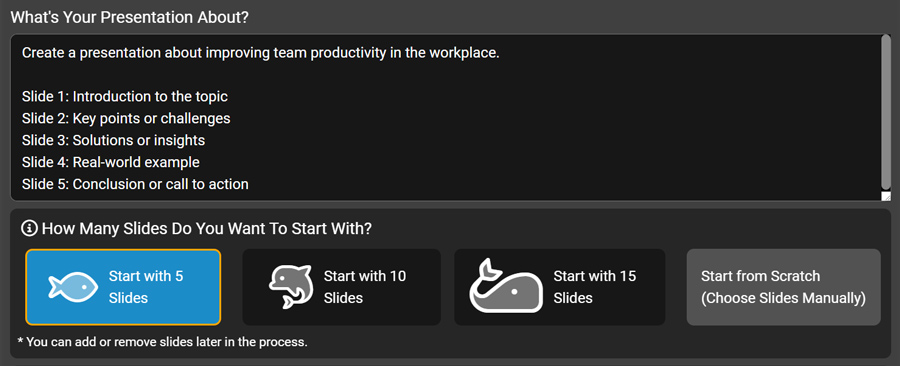
To get started, simply type in your presentation topic and choose how many slides you want.
The wizard will guide you step-by-step as you describe what each slide should include.
Your prompt message becomes the blueprint AI uses to build a complete, themed presentation you can edit and download.
Watch this quick guide to see how the AI Wizard works.
Important: If you include slide numbers such as “Slide 1:” or “Slide 2:” in your prompt, be sure to select the corresponding number of slides when starting your project in the AI Presentation Maker. You can always add or remove slides later during the Preview Slides phase.
You can start creating presentations with AI right from your dashboard — even with limited access!
Try It Free
2. Adding Details for Each Slide
To get the best results, include short notes about what each slide should focus on.
The AI uses these cues to tailor your content perfectly.
- Slide 1: Overview
- Slide 2: Key statistics
- Slide 3: Benefits
- Slide 4: Comparison
- Slide 5: Summary
Be clear and concise — your input helps the AI align the story with your vision.
3. Fine-Tune Your Prompt for Maximum Clarity
Add outcome focus such as “to inspire change,” “to teach a concept,” or
“to simplify a complex idea.”
Include presentation type: “training session,” “marketing pitch,” “classroom lesson,” or “sermon outline.”
Use verb-driven prompts: Teach, Explain, Show, Guide, Motivate.
Example:
4. Adding a Tone to Shape Your Presentation Style
Your presentation’s tone tells the AI how you want your message to sound and feel.
Adding a tone helps your slides match your audience and intent — whether you’re presenting in a classroom, boardroom, or on stage.
🎯 Why Tone Matters
- Professional tone — structured and confident for business settings.
- Motivational tone — energetic and inspiring for leadership or training topics.
- Friendly tone — conversational and relatable for casual audiences.
- Educational tone — clear and informative for teaching or training.
- Persuasive tone — benefits-focused for marketing or proposals.
🧠 How to Add Tone
You can include your tone anywhere in your topic or slide instructions. Example:
“Create a presentation about improving teamwork in the workplace, using a motivational tone.”
“Slide 3: Describe the benefits of collaboration in a friendly tone.”
5. Creating Great Image Prompts
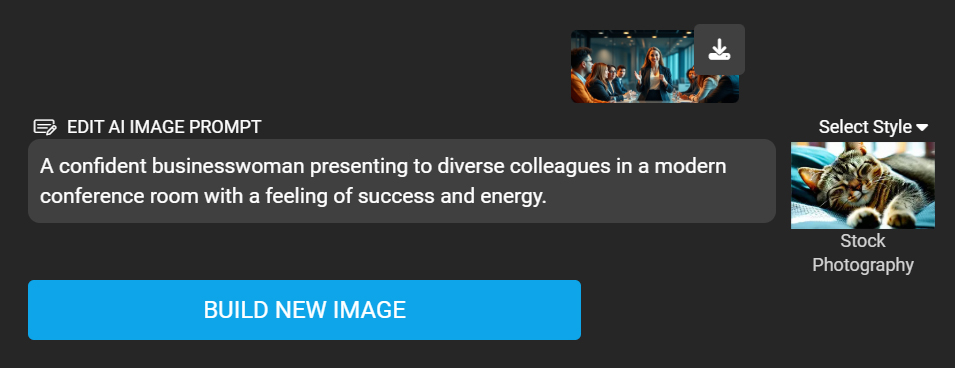
When creating image prompts, always follow this structure:
Subject + Action + Environment + Emotion
Avoid literal terms like software, logo, or text to prevent unwanted words in images.
- A glowing data dashboard representing progress
- A creative workspace filled with ideas and collaboration
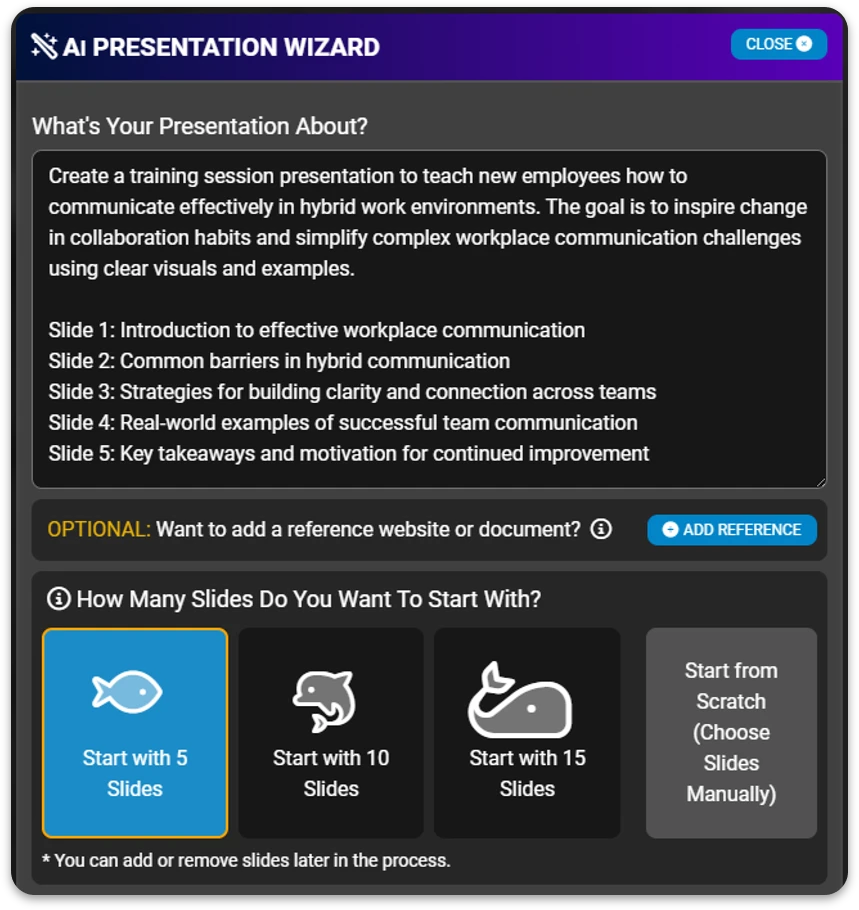
Putting It All Together: Example Prompt
Example of how your AI Presentation Wizard might look with this prompt filled in.
Bonus Tip! Creating in Another Language
The AI Presentation Maker can build slides in many languages.
Simply add “write in Spanish,” “write in German,” or another language to your prompt.
Example: “Create a presentation about renewable energy, write in French.”
For best results, use the same language for your entire prompt to keep everything consistent.