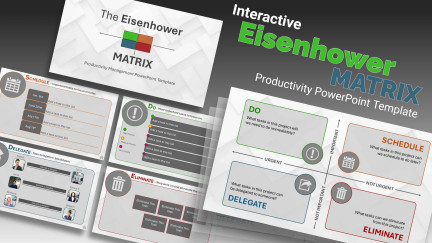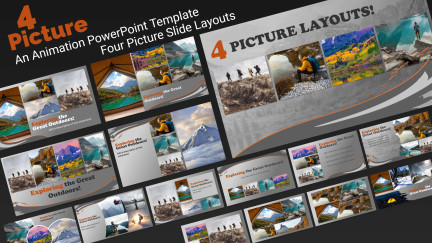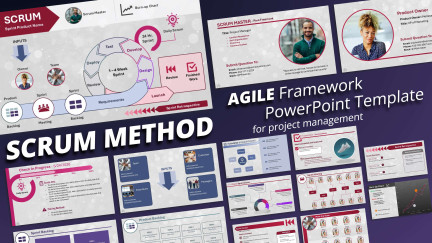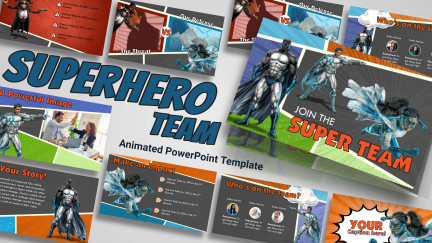

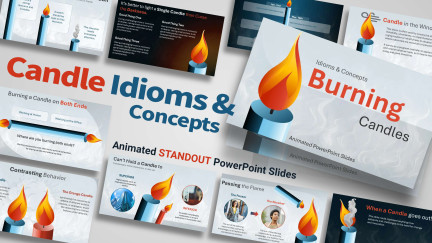
We’ve had questions about the possibility of combining several of our templates into one presentation. Essentially, how do you mix and match slides from different animated templates?
It’s actually very easy to do if you are using PowerPoint 2007 or newer. I’ve put together a video tutorial about how to use the “Reuse Slides” function in PowerPoint 2010 and PowerPoint 2007 to combine slides from various templates.
Click Play to watch Video Tutorial
Note For Combining Several Animated Templates Together.
Remember that the more animated templates you combine the larger your presentation will become. A number of video files will make your presentation quite bulky. This could be a problem if you are distributing the completed presentation.
Please leave a comment if you find this tutorial helpful or have any questions.
You can download the templates used in this video here.
Mac PowerPoint 2008 and 2011 instructions.
In Mac PowerPoint, inserting slides from other presentations or templates work pretty much the same way but the command is labeled differently. The function is located under the “Insert” menu. Look for Insert/Slides From/Other Presentations. See screen shot below:

Insert Slides from other presentations in Mac PowerPoint 2008 and 2011
In the slide finder, be sure to check “Keep Design of Original Slide” to retain the formatting, animations and other graphic elements. Otherwise PowerPoint will only copy the text and not slides design.

Check Keep Design of Original Slides
Tags: PowerPoint 2007, PowerPoint 2008, PowerPoint 2010, PowerPoint 2011, PowerPoint Templates, tutorial, Video Tutorial


Thank you this was an awesome tip and it worked perfectly!
Great Alice! I’m so glad it helped you.
Best,
Art Holden
PresenterMedia
Art,
I have tried to do this but when I insert a slide from a second presentation, the background is still from the FIRST presentation. Help?
Les:
I’m so sorry that you’re experiencing difficulty. Did you remember to click “Keep Source Formatting” on the Insert Slide Pane?
i can’t find that as an option. I have Microsoft 2007
Wait, i found it! Thank you so much!!!!!
Dude, thanks for making this video…It’s gonna make my presentation sooo much better. Keep up the good work and have fun, peace.
This rocks!!!
Thank you for your good explanation!
Excellent tip. Thank you for training and art work. Please keep it up.
David
This was EXCELLENT and very helpful!!!!! Thank you for taking the time out to do this.
Art :
Thanks for the tutorial. I am so excited to get started. The slides look fabulous.
Thanks
Muhammad
Thanks Muhammad, it was nice to talk to you on the phone as well. Best wishes on your presentation.
Thanks so much for everything you guys and gals do. You guys make me look so darn good at meetings with your creations…no joke.
Hi Stacey, Thank you for the nice comment. We sure do appreciate you as a subscriber as well.
Art Holden
PresenterMedia
this just saved my life at work; thanks!
Very helpful. Nice job.. Thanks for sharing
Thanks for the nice tutorial. There is so much to learn on Powerpoint. Keep them coming!
Hi,
Struggled with no sound on viewing the video – any thoughts?
Thanks
Hi Mark, The tutorial video is published using Flash, perhaps you need to update your Flash player?
Art Holden
PresenterMedia
thanks. Im so thankful for this. I was like putting my hair out trying to find out how to do this. the video is pretty useful.
Thanks for this very useful – I am a PhD student and new to presenting at conferences – I have one coming up in a couple of weeks and am basing my presentation on several of your slides. I would like some pictures of buildings (not houses) as I am talking about offices – not sure if this would be a popular enough idea for you guys to take the time though?
Thanks again.
Hi Lesley, I think we could add some more buildings to the site. Do you like the looks of these type of buildings?
Art Holden
PresenterMedia
I clicked on the video tutorial but, the video wasn’t working.
any thoughts?? Thank you Art!!
Hi Jennifer, we had a couple of other people comment about this tutorial not playing right, so I rebuilt it and replaced the old video. Does it play for you now?
Art Holden
PresenterMedia
No! there are no images just a bunch of colorful lines…. it looks like the images are trying really hard to be able to display…
Jennifer, Possibly your Flash player needs to be updated?
Art
You’re a lifesaver! Thank you for this easy tip on combining multiple 2010 PowerPoint presentations into one.
Thanks for such a quick and easy tutorial. Wish I had discovered this years ago, it would have saved me hundreds of times! It worked perfectly!!
woooow ,, great tip , I was wondering how to do that
still learning new things in ppt
you’re the best ^^
thank you
Is it possible to Combine Slides from Multiple PowerPoint Templates while using powerpoint 2003??
Hello Tom, Yes you can combine slides in PowerPoint 2003. Under the Insert tab, choose “Insert Slides From Files”. Browse to the template or presentation you want to add a slide from. Be sure to check the box “Keep Source Formatting” in order to copy the entire slide design and not just the info on the slide.
With our animated templates and PowerPoint 2003, you’ll also need to be sure you are copying the video files into the same directory as your presentation, if you are combining animated templates together.
Hope this helps.
Art Holden
PresenterMedia
Great tutorial for combinig slides from presentations. Gives so much more versatility.
I needed to combine non-animated slides from different presentations while still keeping the backgrounds/elements that students chose to represent themselves. This made my job SO very easy. Thank you very much for this! You are also very easy to listen to – that can’t be said for all oral presenters. Keep up the great work!
So appreciate how quick and easy this was. Thank you much.
Thanks, you rock
You guys are doing a fantastic job and I’ve used tons of the graphics and PPT presentations. I still need a couple more firefighter images. If you need suggestions, I’d be happy to make some.
Thanks again for this wonderful site.
Hi,
Is this tip available for openoffice? I have a lot of powerpoint templates. Thank you in advance.
Regards,
James
Hi James, We are currently not supporting Open Office, as Open Office does not yet support many of the PowerPoint features our templates utilize.
Art Holden
PresenterMedia
Thanks for helpful presentation…..u saved me from lot of trouble…
Thanks for the tutorial! Great video. Very informative and easy to follow.
I love your product. It has been a great joy to make my presentations. However, I need your assistance. I am using PP 2011 on MAC. I am including a slide from your police car flashing. It works fine until I save the presentation and open it again. I have a copy of the entire Police car slide show on my MAC and it is saved and it works just fine. It is only when I combine one of the slides into another slide show.
Please help.
Anna, let me do some research on this. I have not heard of any issues with combining slides on Mac PowerPoint causing it to drop the added animation.
Art Holden
PresenterMedia
Is it possible you saved the presentation as a .ppt instead of the normal .pptx? Saving the presentation as .ppt (compatibility mode) would remove the animation.
Hi Art,
I have kept source formatting, but it seems the combination doesn’t work with different screen presentations like 16:9 with 4:3.
Have I missed something?
Thanks.
Hi Francesco,
PowerPoint should automatically squash or stretch the layouts to fit. The resulting slide insert may need some tweaking if you are not inserting from the same resolution as your main presentation.
What version of PowerPoint are you using? I will see if I can replicate the issue you are having.
Art Holden
PresenterMedia
Hi Art,
I am using PowerPoint 2010 and trying to combine some slides of the following template:
Strike A Pose Toolkit
with:
Risky Tightrope
I tested it using the “Reuse slides” feature from PowerPoint 2010. I was able to insert the 4×3 formats into the 16X9 version and also insert the 16X9 formats into the 4X3. In both cases there was some slight stretching or squishing that occurred as PowerPoint accommodated the different aspect ratios. However, the slides still looked correct and everything played properly.
What exactly is happening for you?
Art
Yes, Art. There are stretching and squashing, but they are not so slight…
Francesco
Since you are not importing from the same aspect ratios, squashing and stretching will occur. In most cases it isn’t too noticeable. You can tweak each image separately after the slide is inserted if the effect is too noticeable.
Ultimately, its best to insert from the same aspect ratios instead of mixing 4×3 and 16×9 together.
I will have a 16×9 version of the Risky Tightrope template added to the site.
Art Holden
PresenterMedia
I have made a video using a combination of some of these slides. It has been posted on YouTube (search for “Synergies between ISO 31000 and ISO 26000 [Risk Management and Social Responsibility]“.
Thanks a lot, Art.
Francesco
how do i upgrade my power point software to a new version
If you are using PowerPoint 2007, you may install the updates by following this tutorial: http://www.presentermedia.com/blog/2010/07/animated-templates-powerpoint-2007/ , however, if you are curious as to how to purchase a newer version of PowerPoint (i.e. PowerPoint 2010 for PC, or PowerPoint 2011 for Mac), you would purchase this from your local retailer or straight through Microsoft.
how do i download the video from presenter media software in with ou any fee. please tell me if any option is there to download
Our content is not free to download unless you are a subscriber. To subscribe, simply click the “Join Now” link at the top of the page. Once subscribed, you are allowed unlimited downloads of our content.
I know how to combine slides from different presentations but how do I do this, still have the animation work but integrate a common color and font scheme? I looked through the string above but couldn’t find the answer.
Cheers!
Travis:
Combine the slides using our tutorial. Once you have the content moved into your presentation you should be able to apply the layout to the various slides without losing the animations (GIF or MOV) or video backgrounds.
A genuine thank you from a teacher who is trying to make content more engaging for her students. I have been wondering how to do this. My video lectures and movies will be SO much cooler now!
Great to hear! Let us know if you ever have suggestions or requests for content, our artists just came out with a multitude of educational clip art, animations and templates.
Thanks for the assistance, this was a good, thorough tutorial.
Very useful indeed. Thanks a lot!
Thank you. Somehow I seem to bluff my way through creating PP Presentations simply by chance. Now I feel so confident with what to do – and to be able to take presentations to the next level of including animations is a dream come true! Especially for an amateur like me. Thank you sincerely! My first day with you and my first attempt on the ‘Global Unity’ templates – so far looking great!
So glad to hear that! Let us know how it all turns out and happy presenting!
Great Help, Thanks.
Hi Presnter Meida Team,
First if all a BIG THANKS for this application! Its simply amazing!
Just a little challenges in custimizing for our needs. Of course with a little assistance from you, can overcome that obstacle.
1) How do I use the quiz templates to define different categories of questions in your 6 or other Category Templates for Quiz?
2) How do I input my answers to those questions?
3) Is there any way I can display it only when I request for answer (so that when I hit any key on my PC or presenter accidentally, it doesn’t display the answer) to verify response of the participants?
Thanks in advance!
I am eager to have answers to implement in my sldes.
I really wanted this feature but after upgrading to Mac OS 10.7.4 it doesn’t seem to work. Any ideas ???
I’m sorry, I’m not using Lion as of yet (which would be 10.7.4 I believe) and the ability should be native to PowerPoint, I’ll check into the compatibility between PowerPoint 2008/2011 and Mac’s Lion OS. Thanks for bringing this to our attention.
Great tip! Works perfect on Power Point Mac 2011. Wonderful job you did.
Hi guys,
have just recently subscribed and have to say brilliant.
Great tutorial – thanks – was wondering how to do this exact thing.
Will keep you posted with how impressed everyone is with your presentations
Regards
Andrew
Andrew,
That’s great to hear, and welcome to PresenterMedia!
BEST tutorial EVER! I’ve been searching for help for about an hour and am SO HAPPY I found your website! Thank you!!!!!!!!!
You’re Welcome
Thank you so much. This just saved me a whole lot of heart ache of merging 40 slides I received from people with different templates. Thank you!
Nicole:
I’m so glad our tutorial was of help!
-Kara Jones
Thanks
This was a great help! Thanks so much! Been battling wit how to do this or hours.
Thank so much!
Thank you very much
[...] of the presentation, you may certainly do that. Simply download our template, and use the Combine Multiple Slides and Templates tutorial to guide you through how to properly combine multiple [...]