Up to 50% OFF

Variations
When you select a layout, the Presentation Builder The Presentation Builder lets you generate or edit AI text, add slides, adjust theme colors, and download your PowerPoint file (works in Google Slides). opens so you can customize the slide and download your PowerPoint file. Watch tutorial
Download the PNG image from PresenterMedia. In PowerPoint, go to Insert → Pictures → This Device, and select the clipart file. You can resize or move it anywhere on the slide.
Yes. Upload the PNG file to your Google Drive, then insert it in Google Slides by going to Insert → Image → Drive. Adjust the size and position as needed.
Yes. Many PresenterMedia clipart images are editable. Use the built-in clipart variations customizer or the advanced settings to change colors before downloading the image to match your theme.
PNG is recommended for clipart because it supports transparency and maintains image quality. It works well in PowerPoint, Google Slides, and most other apps.
Yes. With an active PresenterMedia subscription, you can use downloaded clipart commercially in presentations, marketing materials, and client projects. See our License Agreement for more information.
This clipart image may be included in our free clipart section. We offer a limited selection of clipart for free so you can try them and see if they fit your design workflow. Visit the Presentation Clipart page and find free clipart graphics marked with a green arrow in the top-right corner of each preview thumbnail.
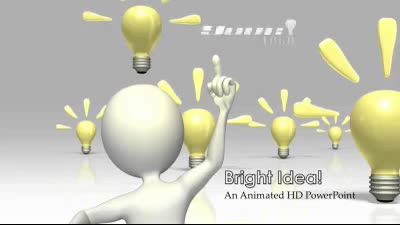
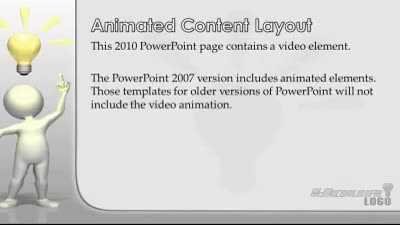
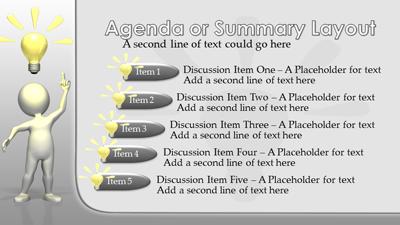
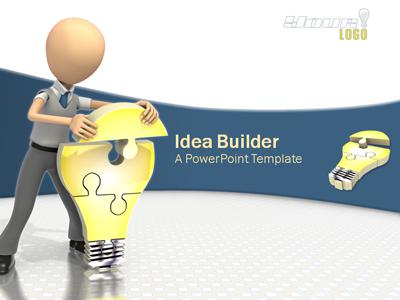
bright idea solution solve light bulb stick figure
Similar Templates and Designs
© 2009-2025 Eclipse Digital Imaging, Inc.
Quality PowerPoint Templates, Animations, videos, and 3D Clipart.
PowerPoint® is a registered trademark
of Microsoft Corporation.