Up to 50% OFF
Variations
When you select a layout, the Presentation Builder The Presentation Builder lets you generate or edit AI text, add slides, adjust theme colors, and download your PowerPoint file (works in Google Slides). opens so you can customize the slide and download your PowerPoint file. Watch tutorial
Download the animated GIF from PresenterMedia. In PowerPoint, go to Insert → Pictures → This Device, and select your file. Resize and position it on your slide — it will animate automatically during the slideshow.
Yes. Upload the GIF to your Google Drive. In Google Slides, choose Insert → Image → Drive, then select your animation. It will animate automatically during presentation mode.
Yes. Our animations are available as GIF files, which are widely supported across many platforms. You can insert them into any software that supports animated GIFs, including Microsoft Word, Keynote, Canva, email builders, websites, and most social media platforms. Just download the animation as a GIF and insert it like any standard image.
Use PresenterMedia's animation customizer to change the REPEATS setting to 1 before downloading. This will make the GIF play only once during your presentation.
Animated GIFs are supported in most modern versions of PowerPoint, including PowerPoint 2016 and later. For best results, use in slideshow mode on desktop.
This PowerPoint animation may be included in our free PowerPoint animations section. We offer a limited selection of animations for free so you can try them and see if they fit your design workflow. Visit the PowerPoint animations page and find free animations marked with a green arrow in the top-right corner of each preview thumbnail.
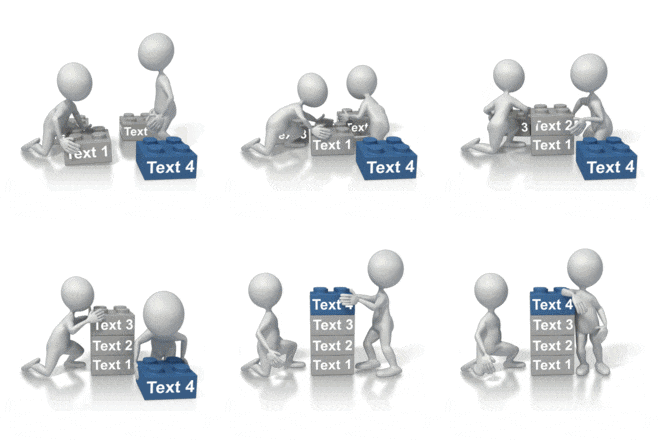
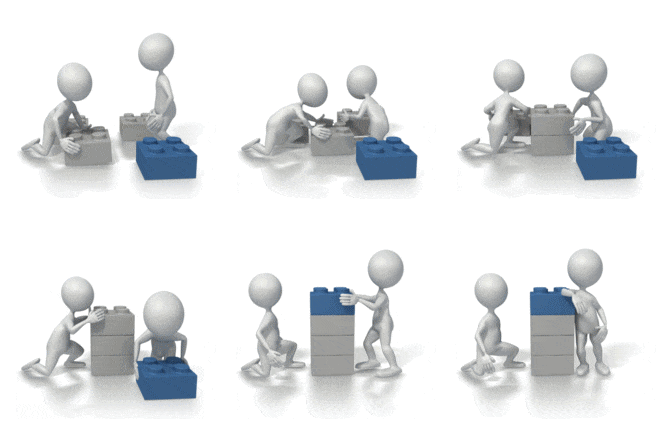
This animated clip features a scene where a construction worker and a friendly robot are engaged in the delicate task of balancing wobbly boxes. The boxes are adorned with various expressive faces, adding a playful and humorous element to the scene. The construction worker, looking concerned, is carefully positioning his hands on the stack, while the robot assists with a cheerful demeanor. This dynamic interaction highlights themes of teamwork and problem-solving in a lighthearted manner, making it perfect for presentations focused on collaboration and creativity. Incorporating this animation into your slides can enhance your storytelling and engage your audience effectively.
To create a cohesive visual theme, consider loading this animation into a predesigned Action Slide above or adding this animation to a slide in our PowerPoint templates. You can also explore more animated options in our PowerPoint Animations collection. Discover additional education and school animations that support instructional storytelling, academic topics, and classroom-focused communication.
This character animation effectively illustrates the concept of teamwork and the challenges of balancing tasks. The interaction between the construction worker and the robot conveys a narrative of collaboration, making it easier for the audience to connect with the message being presented.
Adding this animated clip to a slide in one of our PowerPoint templates creates a cohesive visual theme for the presentation message.
Using GIF or animated PNG files can significantly enhance your presentations by providing engaging visuals that capture attention. Learning how to add animated gifs to PowerPoint and insert animations in Google Slides can elevate your storytelling and make your content more memorable.
balancing, boxes, teamwork, robot, construction, character, problem-solving, collaboration
Similar Templates and Designs
© 2009-2025 Eclipse Digital Imaging, Inc.
Quality PowerPoint Templates, Animations, videos, and 3D Clipart.
PowerPoint® is a registered trademark
of Microsoft Corporation.